The integration with ScriptSure allows clinical staff to e-Prescribe by writing and sending prescriptions while maintaining BestNotes Fresh as the primary, up-to-date record for all patient medication lists.
Permissions Required
- View medication list
- Update medication list
Setting Up E-Prescribe and Managing Medications
How to Sign Up for E-Prescribe
- Go to Settings → Users
- Select the user you want to enable
- In the Edit User dialog, click Request E-Prescribe at the bottom of the screen
- Choose the appropriate access type:
- E-Prescribing
- E-Prescribing of controlled substances
- E-Prescribing on behalf of a clinician (for non-provider staff)
Requirements Before Submitting an E-Prescribe Request
- Prescribers must have an NPI and state license number entered
- For controlled substances, a DEA number is also required
Submitting the E-Prescribe Request
- A “Pending” status indicator will appear after submission
- Once processed by support, the indicator will be removed
E-Prescription Workflow Overview
- A provider opens the medication list and reconciles it -- confirming the list is accurate and up to date
- Reconciled medications sync to e-Prescribe, giving the prescriber current information
- The provider prescribes in e-Prescribe as needed
- Any prescriptions sent are added back to the medication list automatically, ready for the next reconciliation
- The medication list in BestNotes Fresh is always the complete, up-to-date record. e-Prescribe is where prescriptions are written and sent, but the list in BestNotes Fresh is the single source of truth.
Patients Reporting Their Medications
Patients can self-report medications via the portal intake form. On the intake form, they will indicate yes or no if they are taking medications. If they select Yes, they enter the name, dose, and frequency, which syncs directly to their chart. If they select No, the chart is automatically updated to reflect No Known Medications.
Staff Reviewing, Adding, and Editing Patient Medications
- In the patient chart, within the Clinical tab, staff can add new medications by clicking the + button in the Med card.
- To edit a medication, click on it to open the detail view. From there you can make appropriate changes.
- To archive a medication (mark it inactive), open the medication and select the vertical ellipsis icon and select Archive medication from the menu.
- Archived medications are hidden by default but can be shown using Show inactive medications in the card menu.
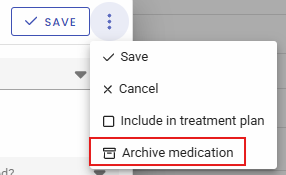
- To restore an archived medication, open it and select Restore medication.
- The Medications section can also appear inside documentation forms (for example, during a pre-screening or intake assessment). It shows the same medication list, and any changes made there update the single list for that patient.
- When adding or editing a medication, you can type a medication name and select from the search results. Selecting from the list links the medication to a standard drug database, which is required for syncing to e-Prescribe. If you type a name without selecting a result, the medication is saved as free text and a warning icon appears to let you know it will not sync. The provider will need to select the medication from the standard drug database search menu for it to sync to e-Prescribe.
Reconciling and Sending Medications to E-Prescribe
What reconciliation means: A provider reviews the medication list and confirms it is accurate and up-to-date. Reconciliation is also what sends medications over to e-Prescribe — simply adding or editing a medication does not sync it.
Steps to Reconcile Medications in BestNotes
- On the Meds card, click Reconcile medications. (In a documentation form, the same button appears below the medication list.)
- A checkbox appears next to each medication. Check the box next to each medication that has been verified. You can use Select all to check everything at once.
- Click Reconcile selected to confirm.
After Reconciliation
- Each reconciled medication shows who reconciled it and when (displayed as "Last reconciled" with a date and name below the medication entry).
- The reconciled medications are synced to e-Prescribe, so the prescriber can see them when writing new prescriptions.
- If a medication was entered as free text (not selected from the search results), it will not sync to e-Prescribe. These medications will be indicated by a yellow warning icon in the medication details in the patient chart.
Prescribing with E-Prescribe
Prescribers who have been set up in e-Prescribe, or staff members who have been configured to act on behalf of a prescriber, can use this feature.
On the Meds card, click the e-Prescribe button. e-Prescribe opens in a new window.
Before e-Prescribe opens, the system checks for required patient information. The patient must have:
- First name and last name
- Date of birth
- Gender (not "unknown")
- A complete address (street, city, state, and zip code)
- At least one phone number (home, work, or cell)
- If anything is missing, a warning appears on the Meds card listing exactly what needs to be filled in. You will need to update the patient's demographics before you can proceed.
The first time you open e-Prescribe for a patient the system connects that patient and syncs their current allergies and diagnoses. You will briefly see a "Syncing allergies and diagnoses to e-Prescribe..." message, followed by a confirmation showing how many were synced.
Once inside e-Prescribe, write and send prescriptions as needed. When a prescription is sent, it automatically appears on the patient's medication list in BestNotes Fresh. This is how the medication list stays current — every prescription written in e-Prescribe becomes a new entry on the chart without anyone needing to re-enter it.
These prescription entries are read-only in BestNotes Fresh (they cannot be edited since they originated from e-Prescribe). They display their delivery status, such as:
- Sent to Pharmacy — the prescription has been transmitted
- Pharmacy Acknowledged — the pharmacy confirmed receipt
- Pharmacy Accepted — the pharmacy accepted the prescription
- Cancelled — the prescription was cancelled
- Change Requested — the pharmacy requested a change
- Renewal Response — a renewal response was processed
- If a prescription encounters an issue at the pharmacy, a Pharmacy Error status appears.
Each prescription entry also shows details from e-Prescribe, including who prescribed it, which pharmacy it was sent to, and when it was received.
If the same patient returns later, the medication list already reflects everything that was prescribed — ready for the next reconciliation cycle.
Understanding the Medication List Entries
The medication list can contain several types of entries. Here is how to tell them apart:
- Medications added by the patient — entered during intake on the portal. These show on the chart and can be edited by staff. They display an "Active" status label.
- Medications added by staff — entered directly on the chart by clicking Add medication. These are editable and also display an "Active" status label.
- Prescriptions from e-Prescribe — created automatically when a prescription is sent from e-Prescribe. These are marked with a blue Prescribed label and show the pharmacy delivery status (e.g., "Sent to Pharmacy," "Pharmacy Acknowledged"). They are read-only and cannot be edited in BestNotes Fresh. When you open one, a message reads: "This medication was prescribed via e-Prescribe and cannot be edited."
- Reconciled medications — any medication (regardless of how it was added) that has been verified by a provider. These show "Last reconciled:" followed by the date and the name of the person who performed it.
- Free-text medications — medications typed in without selecting from the search results. These show a yellow Non e-Prescribe medication warning label and will not sync to e-Prescribe. To fix this, edit the medication, clear the name, and select the correct medication from the search results.
- Each medication entry also shows its start and end dates (if set) and frequency.
The medication list also tracks a full change history. When you open a medication, the History section shows every change that was made, who made it (including updates from e-Prescribe), and when.
Frequently Asked Questions
Why don't my medication changes show up in e-Prescribe?
Only reconciled medications are sent to e-Prescribe. If you add or edit a medication on the chart, you need to reconcile it before it will appear in e-Prescribe. Click Reconcile medications, select the updated medications, and click Reconcile selected. Also, free-text medications (those typed in without selecting from the search results) cannot be synced — make sure to select a medication from the dropdown results.
What does the "Reconcile medications" button do?
Reconciling confirms that a provider has reviewed the medication list and verified it is accurate. It records who reviewed it and when, and it syncs the reconciled medications to e-Prescribe so the prescriber has current information when writing new prescriptions.
What if a patient didn't enter their medications on the portal?
Staff can add medications directly on the patient's chart. Open the Meds card, click the + button or select Add medication from the menu, and enter the medication details. The medication list works the same way regardless of whether medications were entered by the patient or by staff.
What patient information is required before I can open e-Prescribe?
The patient must have a first name, last name, date of birth, gender (male or female — not "unknown"), a complete address (street, city, state, and zip code), and at least one phone number. If any of this is missing, a warning will appear listing the specific fields that need to be completed.
Pricing
For information regarding the cost of e-Prescribe, please visit our pricing page.