This guide will help you navigate the process of launching, completing, and managing clinical forms to ensure accurate patient records.
Launching a Form
There are three primary ways to initiate a form within a patient’s chart.
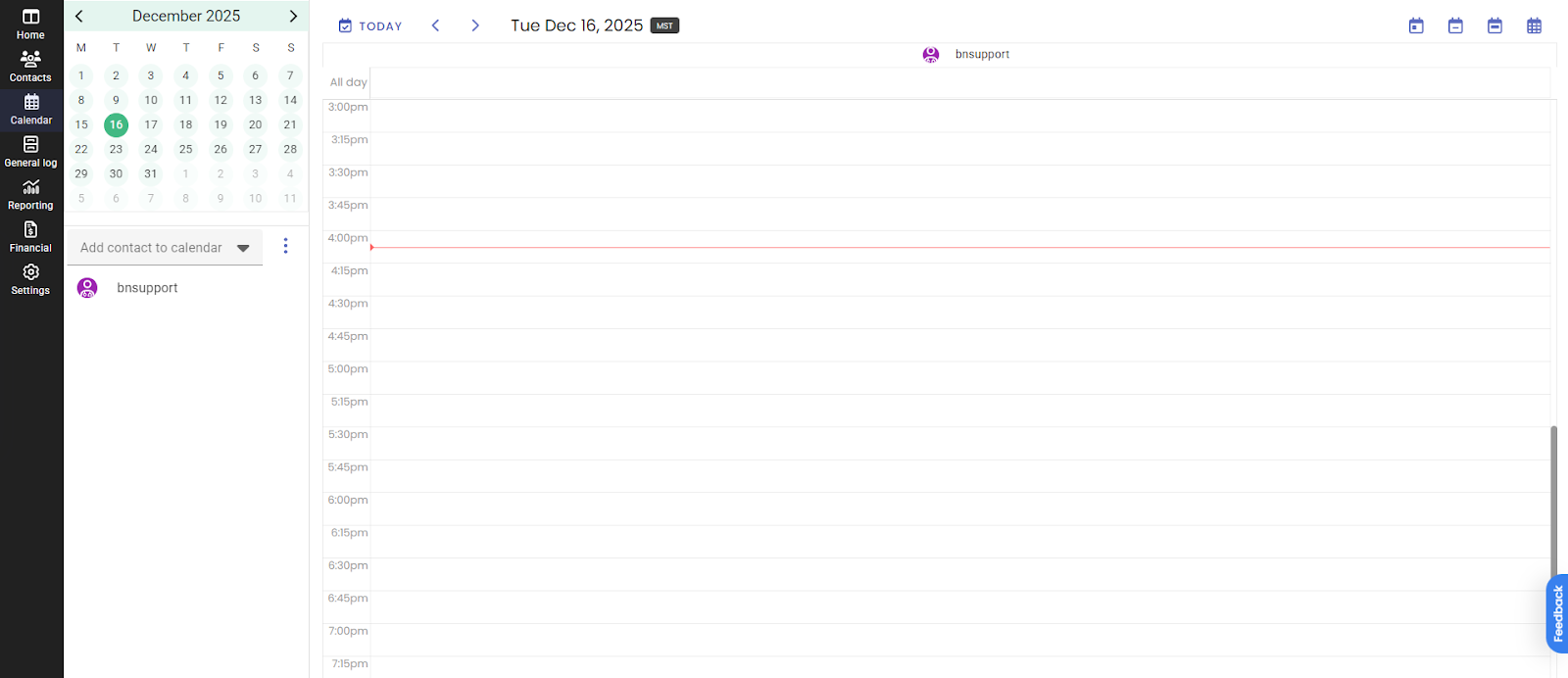
Option 1: Via the Calendar (Recommended)
This is the most efficient method. Opening forms directly from a scheduled calendar appointment allows the system to:
- Manage recurring appointments and group sessions
- Automatically assign planned procedure codes.
- Sync scheduling data directly with the documentation.
Option 2: Standalone Form
You can create a standalone form by selecting the Get Started button within the Activity Tab of the Patient’s chart.
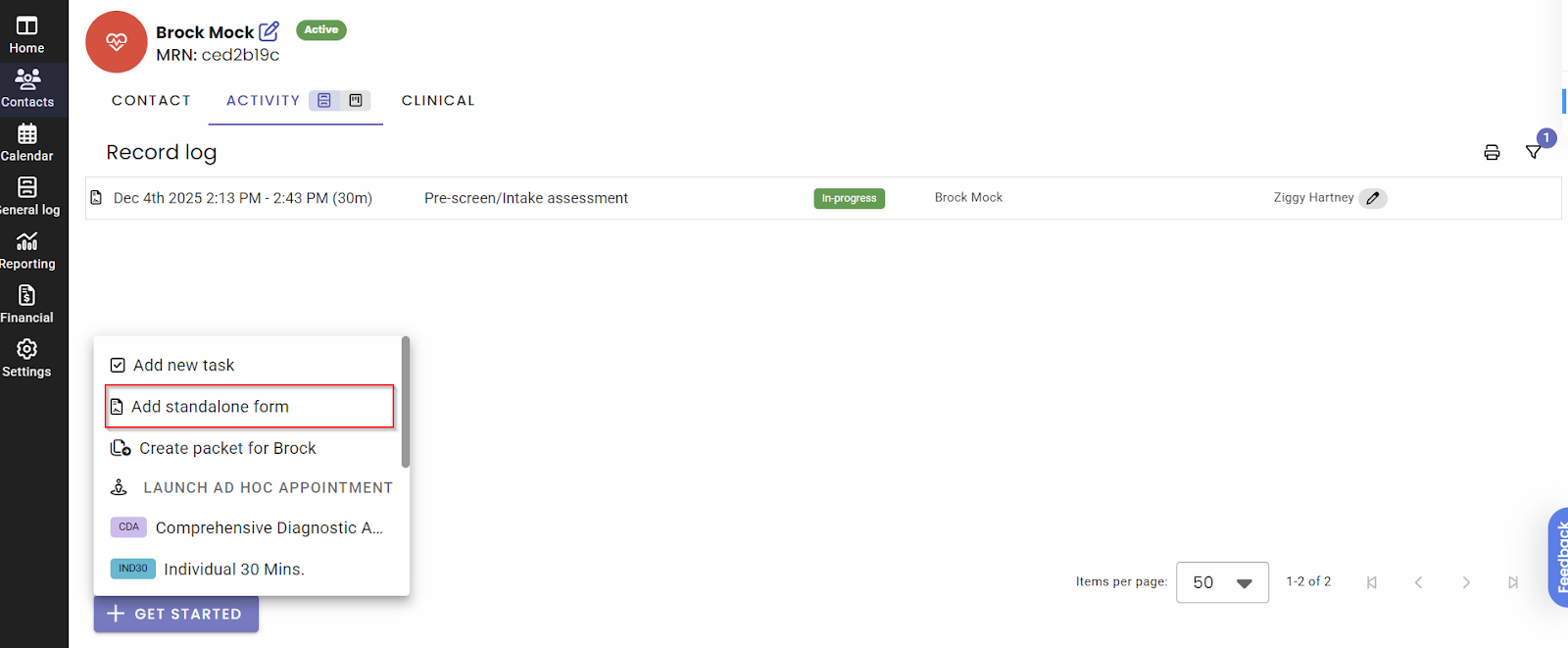
Note: If you use this method, you must manually assign the end time and the appropriate procedure code.
Option 3: Ad Hoc Appointment
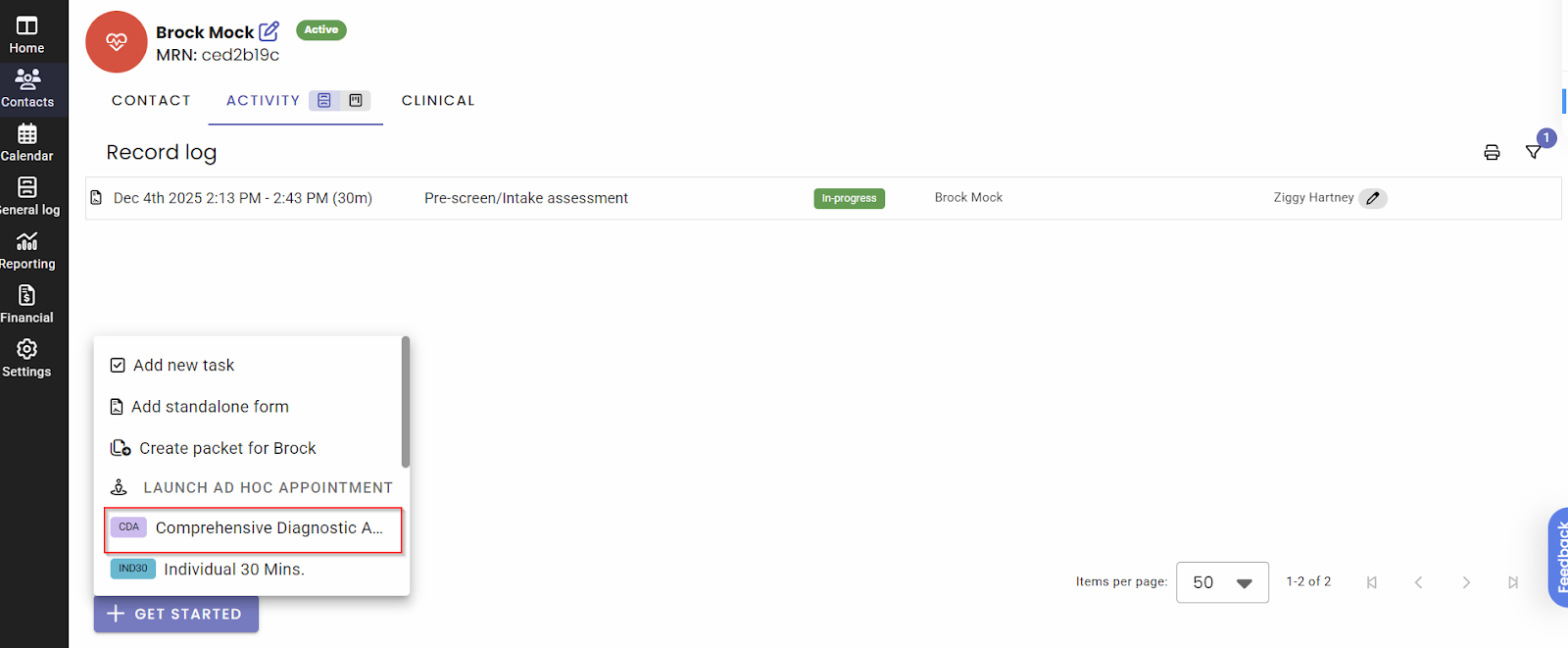
From the Get Started menu in the Activity Tab, you can launch an Ad Hoc appointment.
- This pulls from your list of saved appointment types.
- It automatically launches designated forms and applies specific procedure codes based on your settings.
Addressed in Session
You can now connect session documentation to the Master Treatment Plan using Addressed in Session.
During Progress Notes or Group Notes:
- Select the relevant Problem, Goal, Objective, or Intervention
- Add a quick summary of what was addressed
During Treatment Plan Reviews:
- View prior session summaries
- Choose to display them in your review
Why it matters
- Keeps Treatment Plans aligned with real session work
- Speeds up Treatment Plan Reviews
- Improves continuity across documentation
Filling Out Clinical Forms
As you work through assessments like the Pre-Screen or Comprehensive Diagnostic Assessment (CDA), keep these navigation tips in mind:
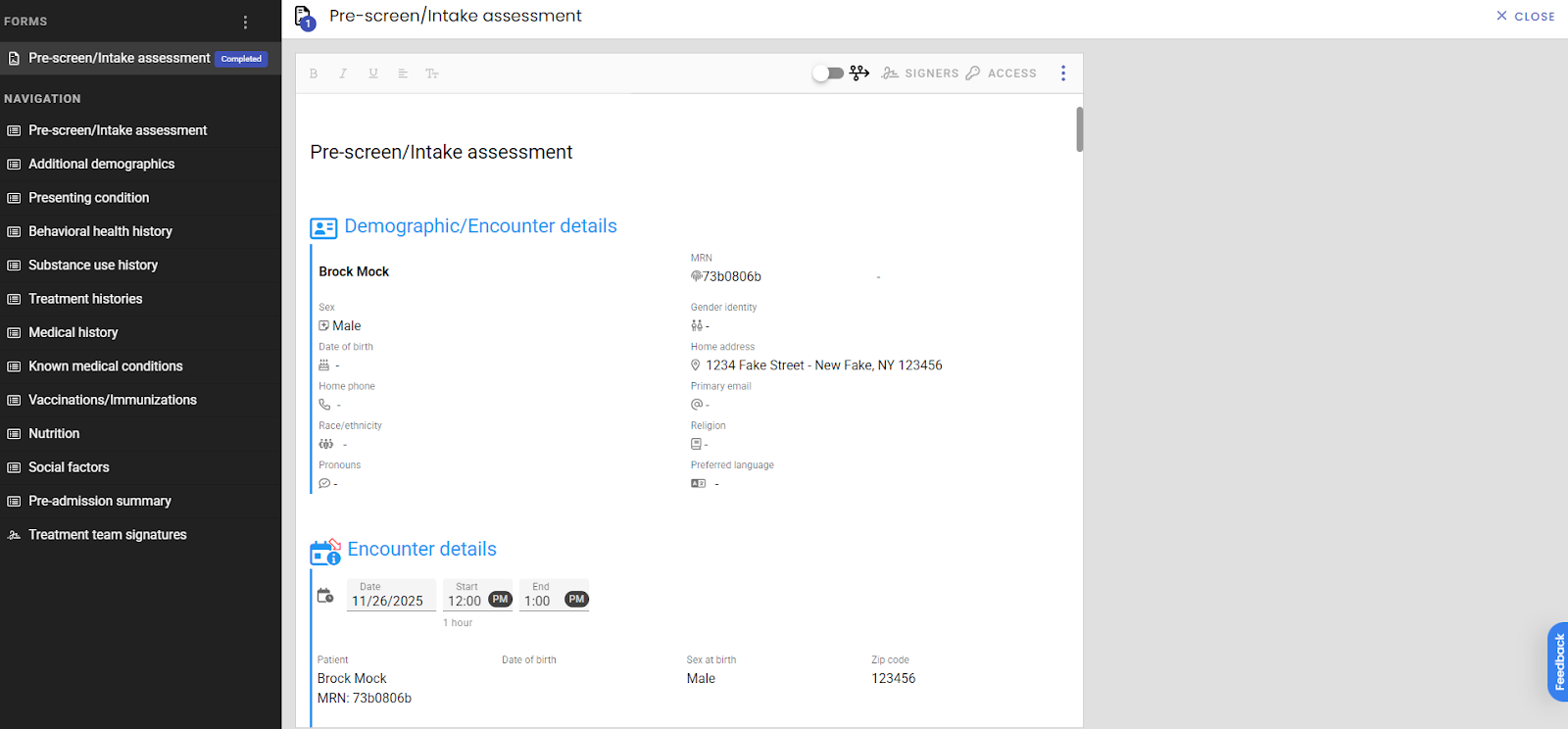
Navigation Menu: Located on the left side of every form. Click any section title to jump directly to that area.
Green Headings (Widgets): Headings in green text contain interactive widgets. These allow you to add extra text fields or tables.
Note: These sections may remain hidden until you click the widget to expand them.Data Auto-Population: Information entered in the Pre-Screen/Intake Assessment (such as allergies, medications, and history) will automatically flow into the CDA to save you time.
Signing and Completing Forms
Once your documentation is finalized, you must capture the necessary signatures to lock the record. As the provider completing the form, your signature will automatically be applied.
Adding Signers
Select Signers at the top of the form.
Use the searchable drop-down menu to find the staff member or contact.
Click Save. The signers will now appear at the bottom of the form with their current signature status.
Finalizing the Document
If you are a signer: Select Sign & Complete. A prompt will ask if you wish to apply your signature immediately or mark it complete and sign later.
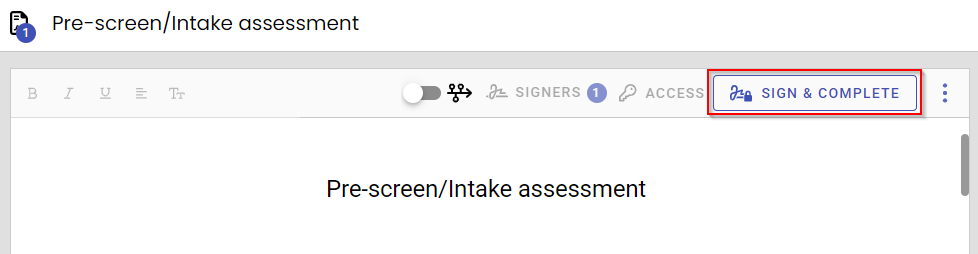
If you are NOT a signer: Select Complete. This locks your edits and notifies the assigned signers that the document is ready for their review.
Collecting Patient Signatures (Scribble)
If a patient needs to sign in person:
Open the document from the Activity Log.
Scroll to the bottom and click Collect Signature next to the patient’s name.

An electronic signature pad will appear for the patient to sign.
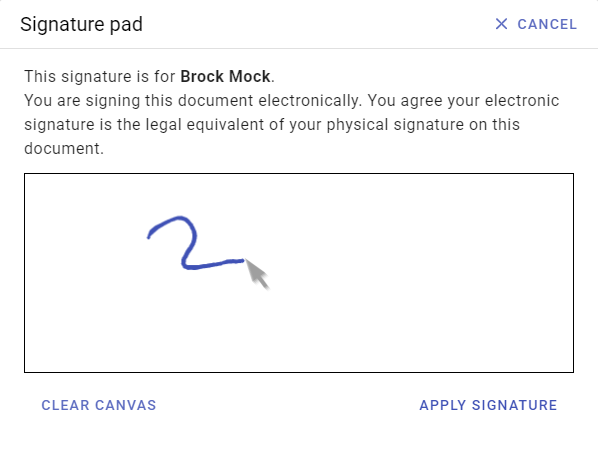
Collecting signatures via the portal
Providers can send completed, signed forms to the patient portal for signature.
Add Signers: Designate the patient or contact as a signer during or after form completion.
Send to Portal: Select the Globe icon at the top of the form and choose the appropriate patient or contact.
Clinical Documentation Guide: Intake to Treatment Planning
This guide outlines the workflow for clinical documentation within BestNotes Fresh, covering the progression from initial intake to ongoing treatment plan reviews and progress notes.
Pre-Screen / Intake Assessment
The Pre-Screen/Intake Assessment is the first step in the patient journey, designed to gather essential data through an application-style format.
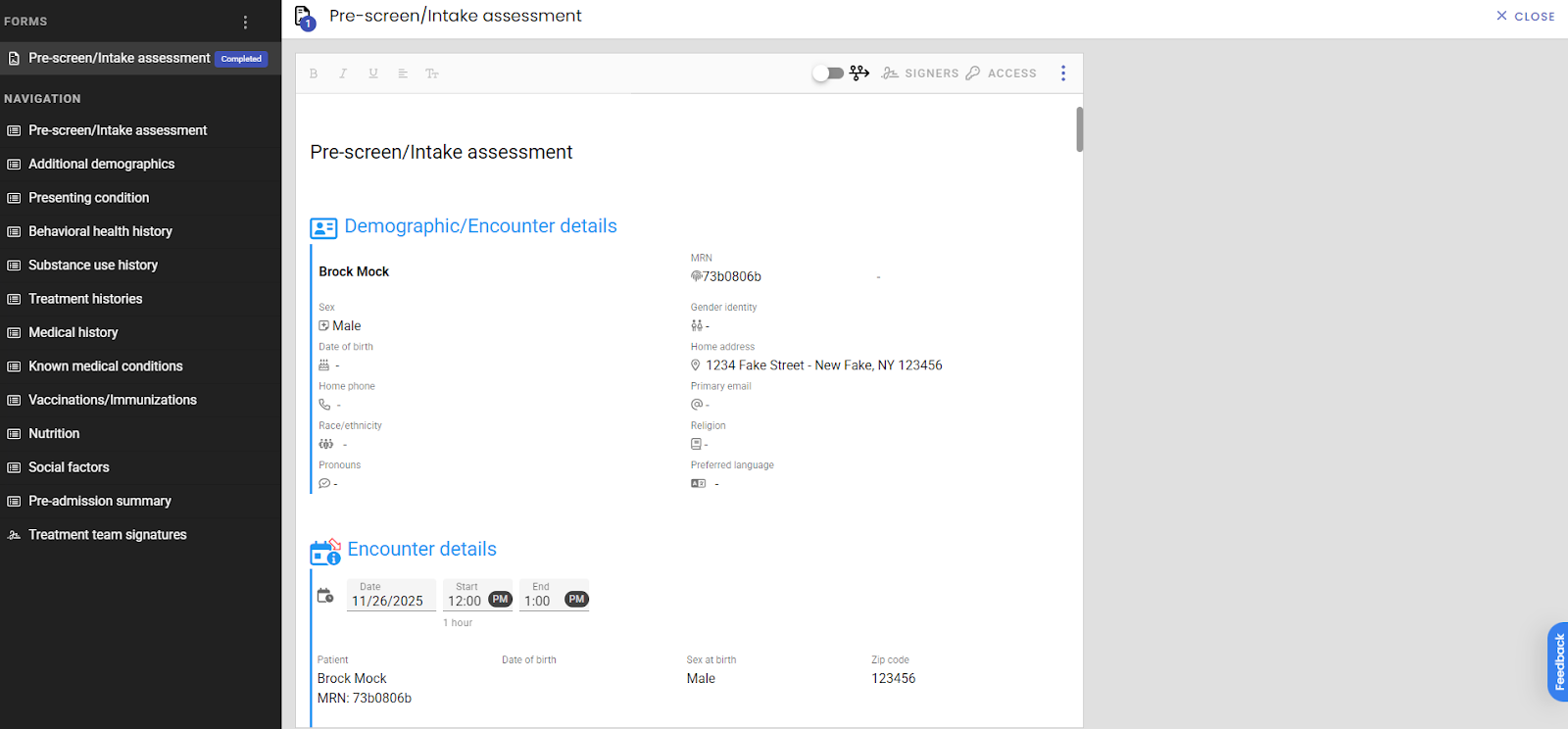
Completion Options: Can be filled out by the client via the Portal or manually by a BestNotes User.
Data Collected:
Presenting conditions and current medications.
Allergies and substance use history
Previous diagnoses and treatment history
Navigation & Interaction:
Left Navigation Menu: Use this to jump quickly between sections.
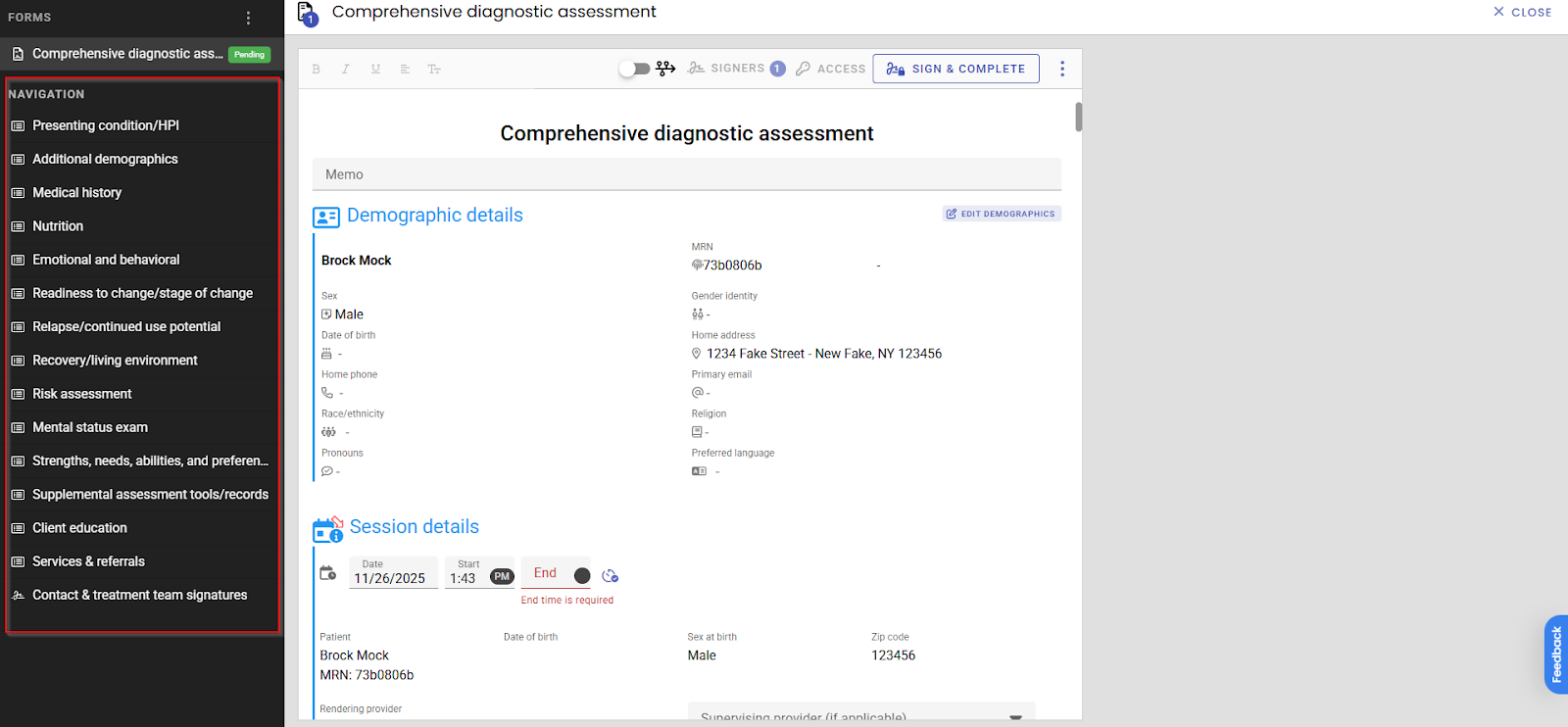
Green Headings: These indicate Widgets. Click the green text to reveal additional text fields or tables.
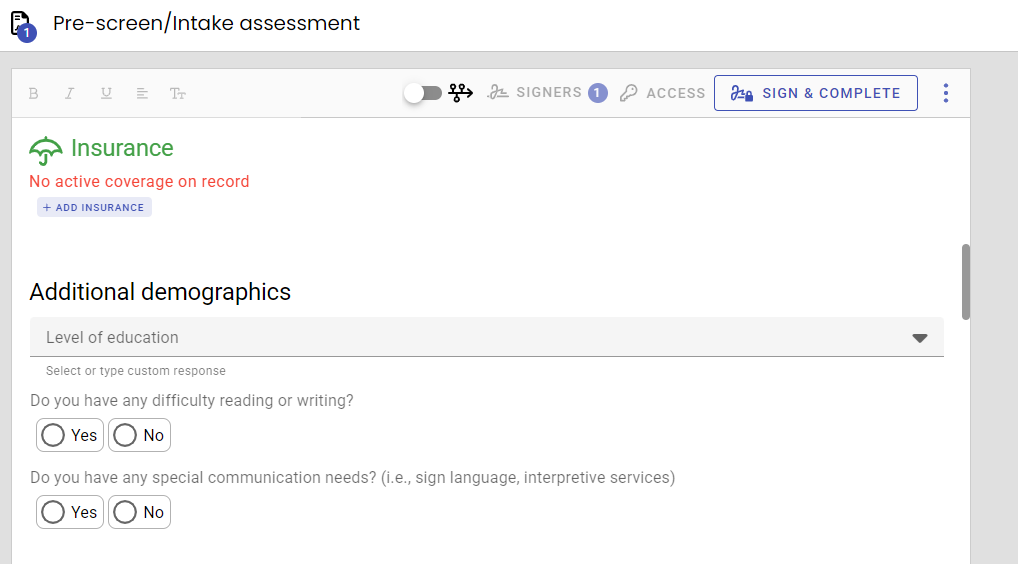
Comprehensive Diagnostic Assessment (CDA)
Information from the Pre-Screen automatically transfers to the CDA to reduce redundant data entry.
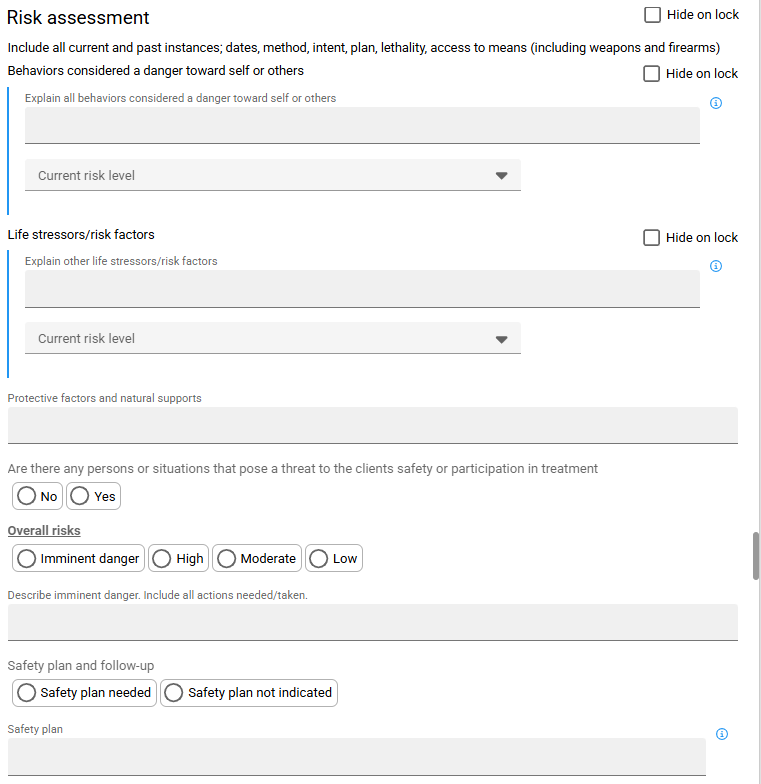
Risk Assessment: Analyze patient risk levels and indicate if a Safety Plan is required. You can record the completion date of the safety plan directly in this section.
Mental Status Exam (MSE): A standardized tool to track patient behavior during sessions.

Clinical Evaluative & Interpretive Summary
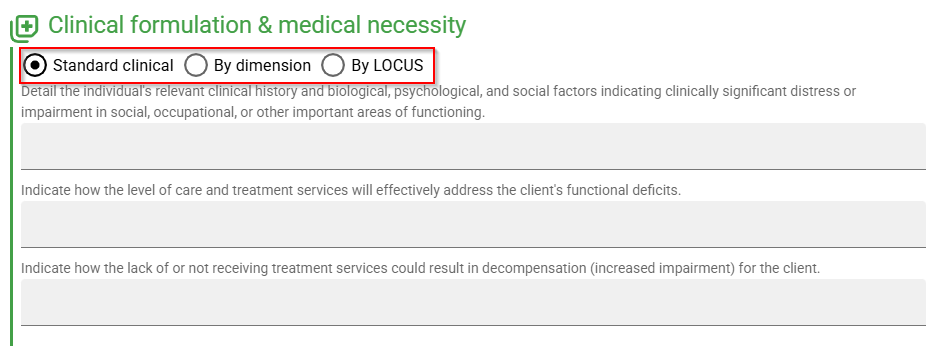
Clinical formulation & medical necessity: This section helps providers document clinical summaries and justify the appropriate Level of Care (LOC) for payers. Depending on the patient's age and your specific reporting requirements, you may choose from the following frameworks:
1. Standard Clinical Summary
- Best Use: The default option for all providers.
- Purpose: Use this to explain the clinical narrative—what is happening with the patient and the underlying medical necessity for treatment.
2. ASAM Criteria (The American Society of Addiction Medicine)
BestNotes Fresh supports both the 3rd and 4th Editions to accommodate evolving industry standards.
ASAM 4th Edition (Adults): * Recommended for all adult patients to justify level of care to payers.
Note: Access to this tool is restricted to users with the specific ASAM 4 permission.
ASAM 3rd Edition (Adolescents): * Currently the primary tool for adolescent populations.
While an "Adult" designation is available in the 3rd Edition, we strongly recommend using ASAM 4 for adult patients unless otherwise required by your payer.
Looking Ahead: ASAM 4 updates for adolescent populations are expected in the near future.
NOTE: When treating an adult and using ASAM 4, ensure you utilize both the Standard Clinical Summary and the ASAM 4 assessment to provide a comprehensive justification for the payer.
3. By LOCUS
Best Use: Providers who prefer or are required to use Level of Care Utilization System (LOCUS) parameters.
Purpose: Generates level of care justifications based on specific LOC parameters rather than ASAM dimensions.
How to Complete an ASAM 4 Assessment
If you have the required permissions, follow these steps to generate a 4th Edition assessment:
Navigate to the patient's clinical record.
Click on “Create New Assessment.”
Select ASAM 4 from the options.
Complete the required fields and click SAVE.
Need to make a correction? Simply use the “Edit” button to update any saved assessment.
Diagnosis Management:
Add New Diagnosis: Users with appropriate permissions can search by code or keyword.
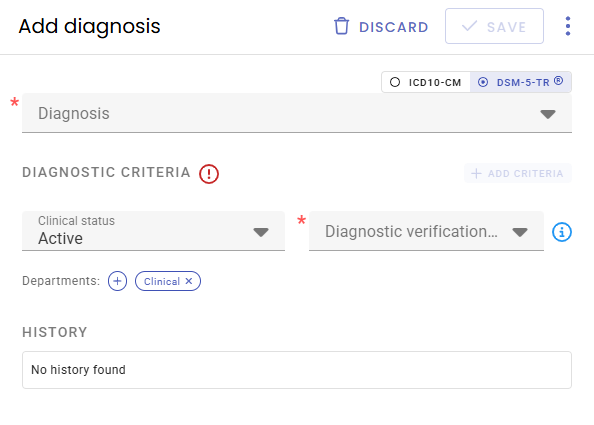
ICD-10 vs. DSM-5: ICD-10 codes are included at no extra cost; DSM-5 is an optional, permission-based paid add-on that provides clickable diagnostic criteria.
Clinical Status: Set "Clinical Status" and "Verification Status" to track the diagnosis lifecycle.
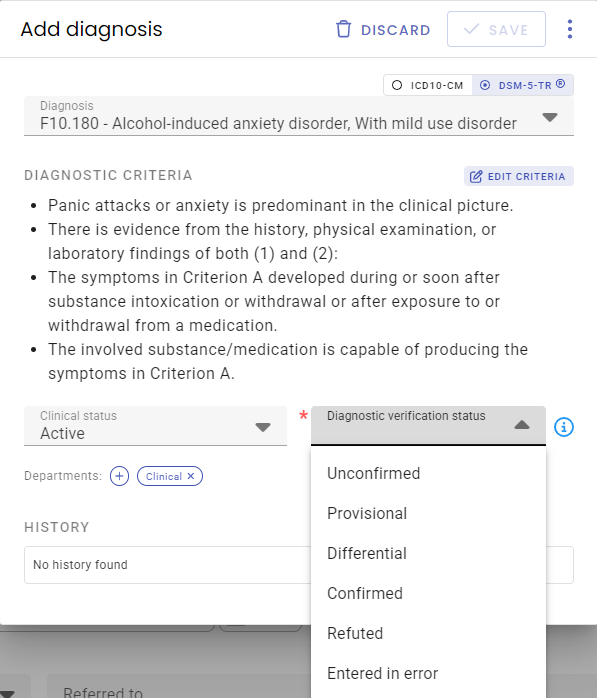
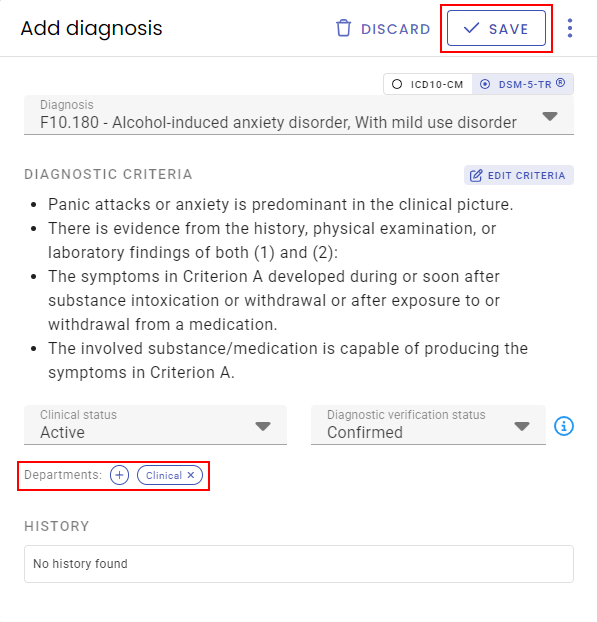
Treatment Initialization: Use the Manage Initial Treatment Plan widget to begin identifying problems and goals.
This Manage Initial Treatment Plan widget pulls from the diagnosis list.
Select each diagnosis to create a problem with corresponding goal(s).
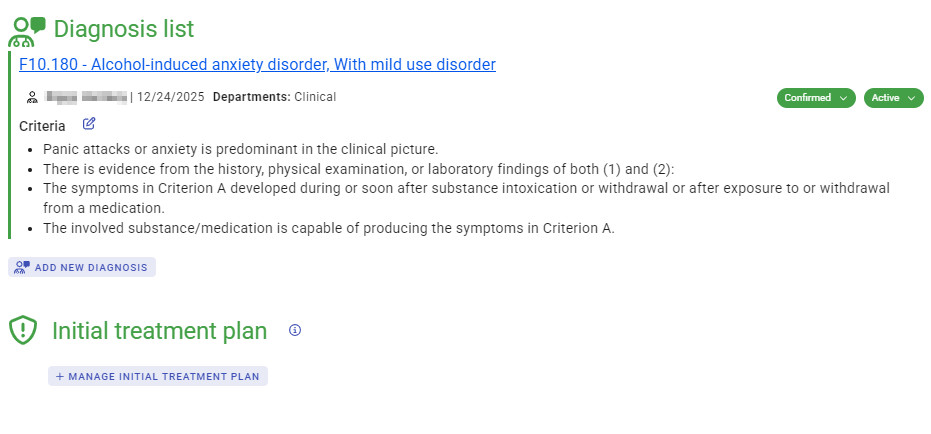
Problems can be added by clicking on the Add Problem dropdown and selecting from the ASAM4 assessment dimension drivers, or from the diagnosis list (the associated department will appear with problems as well).
Master Treatment Plan (MTP)
The Master Treatment Plan (MTP) serves as the central hub for the patient's recovery roadmap, pulling data from the Comprehensive Diagnostic Assessment (CDA).
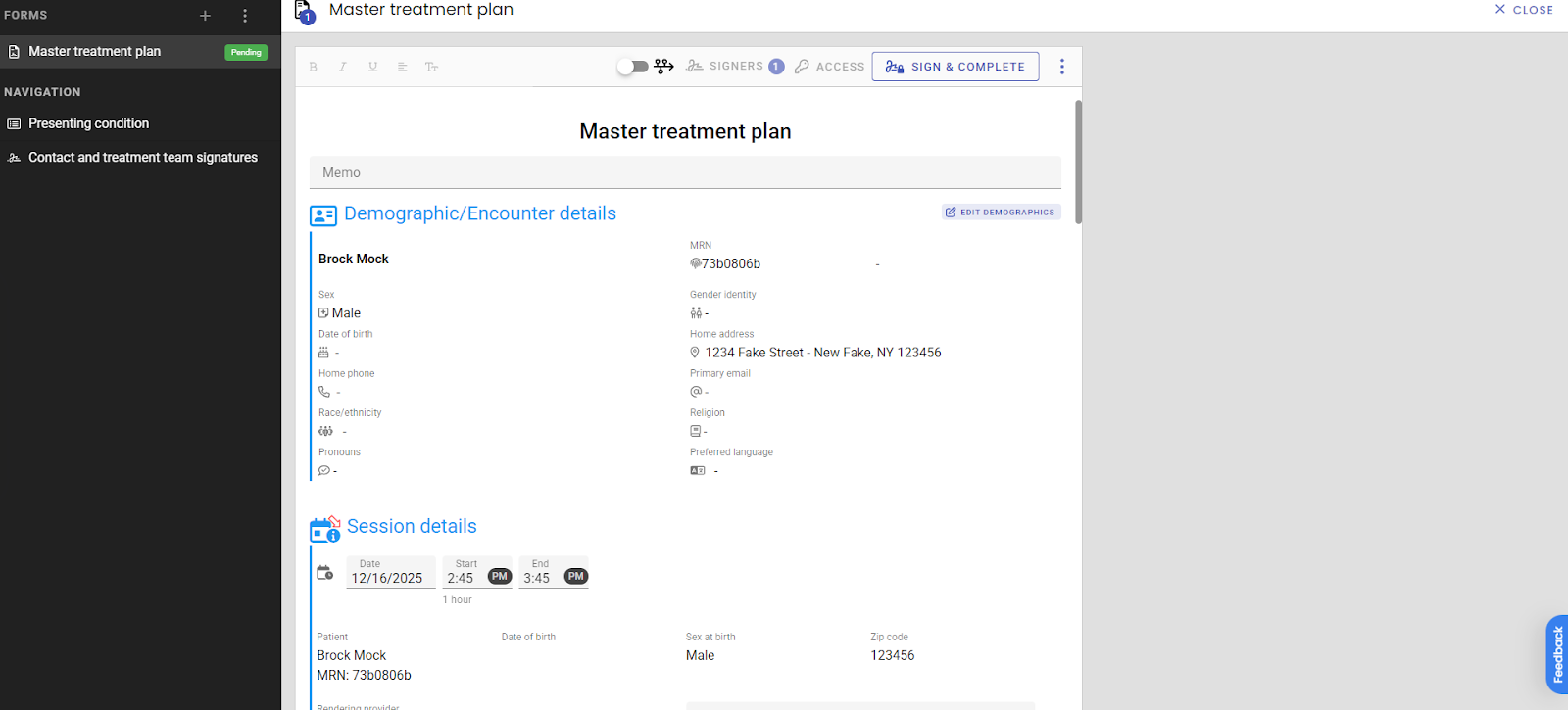
The MTP is designed to pull information automatically from previous assessments to ensure continuity of care. Follow the guidelines below to manage assessments, goals, and reviews.
1. Integration with Assessments
ASAM4 Data: If an ASAM4 assessment has been completed, the data will automatically populate within the MTP.
Updating Assessments: To update existing ASAM4 information, select Re-Assessment. Once updated, the new information will reflect in the MTP immediately.
- Diagnosis & Problems: Any diagnosis or problem previously entered in the CDA will appear in the MTP automatically.
ASAM4 Level of care review: Select Edit to revise the level of care.
2. Goals, Objectives, and Interventions
The MTP allows for both the continuation of existing plans and the creation of new ones:
Existing Goals: You can add new objectives and interventions to goals that were previously established.
New Goals: Select the option to create a new goal at any time to expand the treatment plan.
3. Conducting and Viewing Reviews
Direct Reviews: To perform a review within the MTP, click the Review button located directly under each objective.
Progress Note Reviews: If a review was completed within a progress note, you can view or display that data by selecting the respective view buttons within the MTP module.
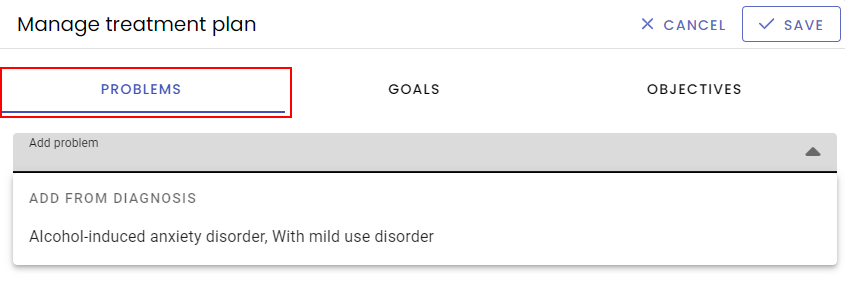
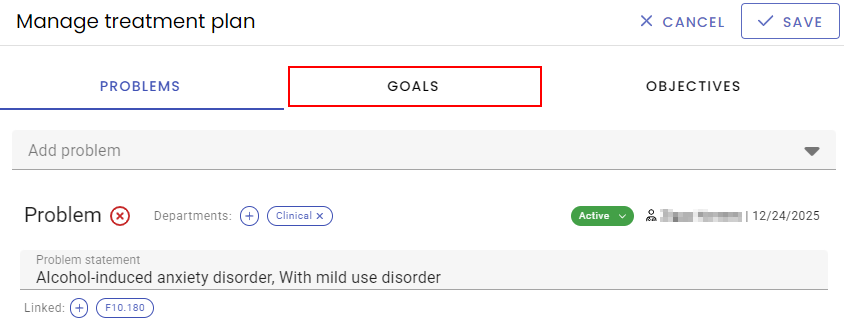
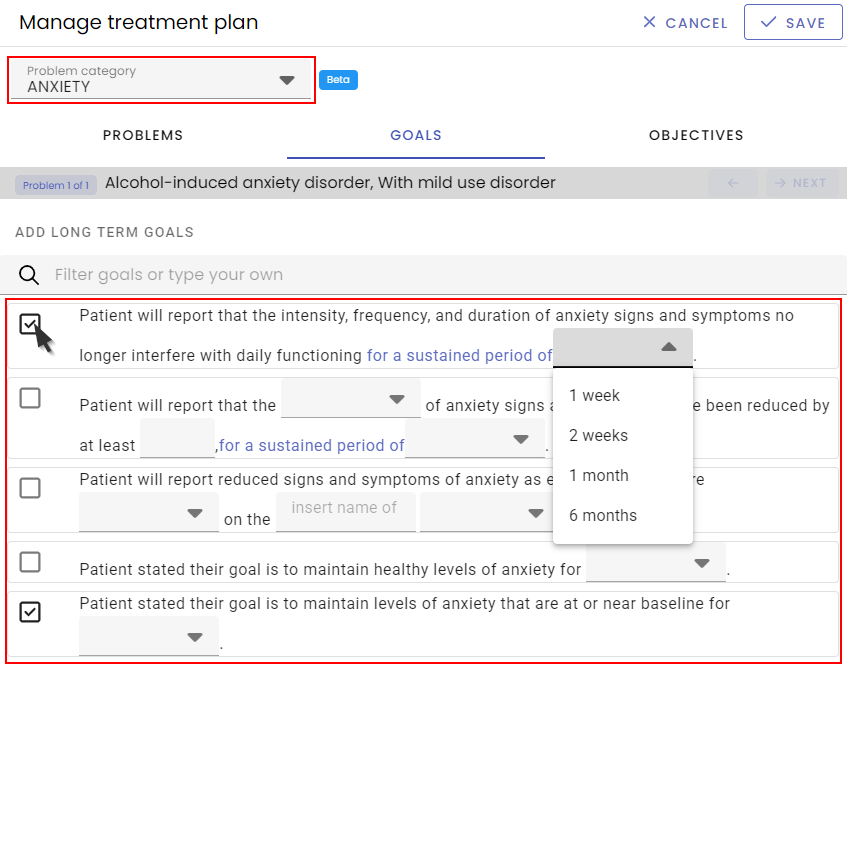
Goals: Filter by problem category to generate pre-set, customizable goals.
Objectives & Interventions: In the Objectives tab, add Objectives and Interventions for each goal.
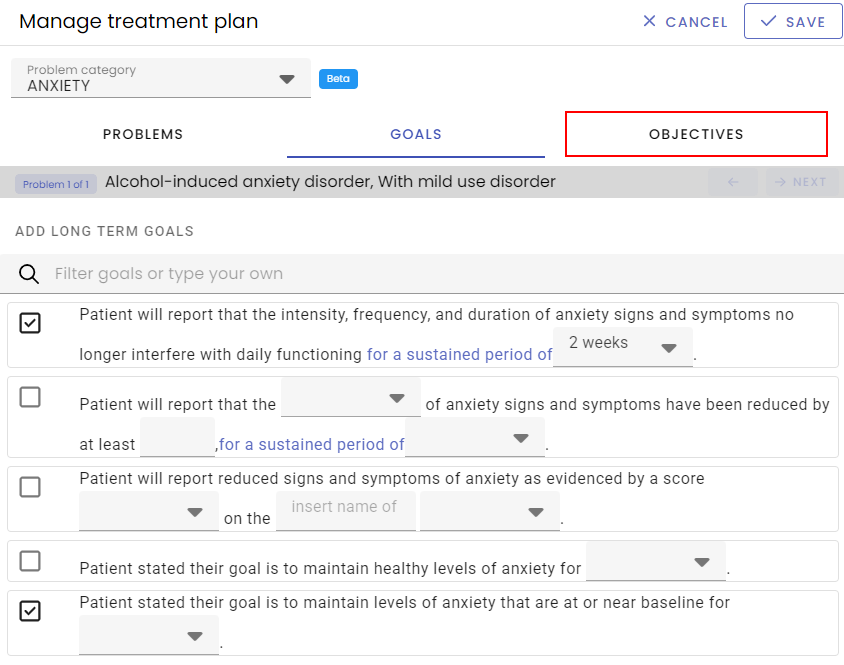
Customization: You can manually type and add unique goals/objectives if the pre-set options do not fit.
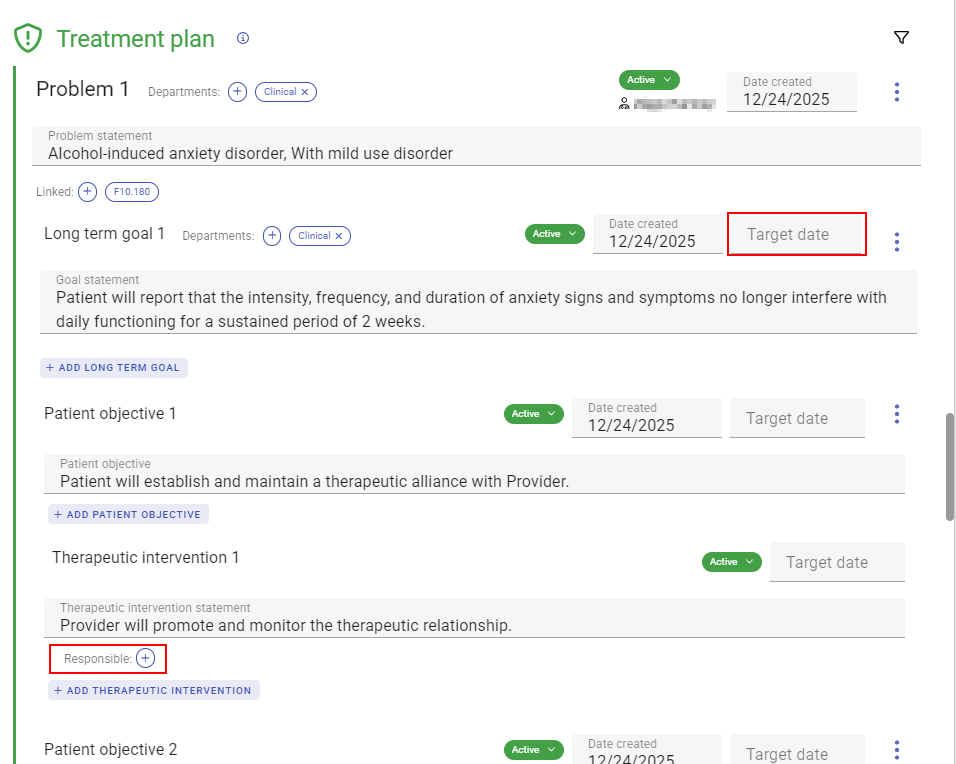
Finalizing: Add target dates, assign responsible users for interventions, and complete the discharge/referral sections before signing.
Treatment Plan Review
To update a treatment plan, open a new Master Treatment Plan; it prepopulates with all data from the Initial Treatment Plan for easy editing.
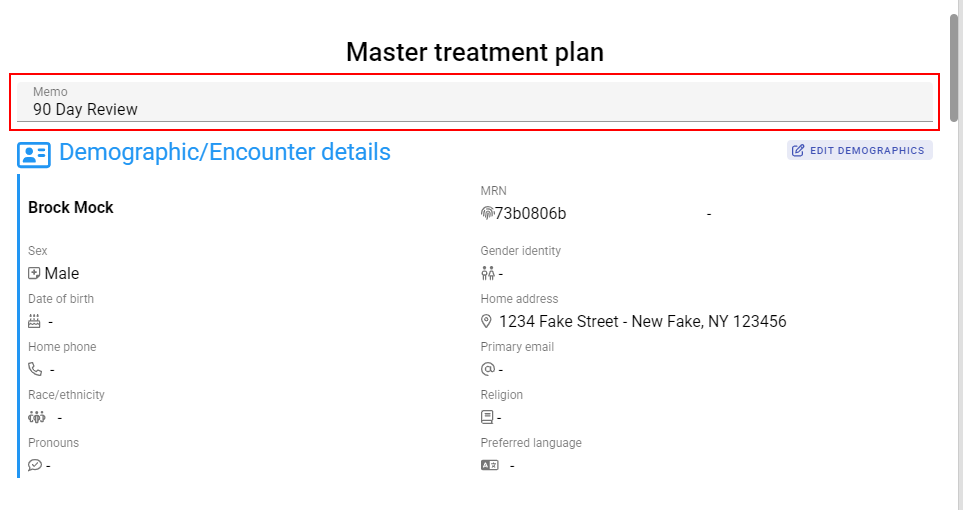
Memo Line: Mark the form as a "Review" in the memo line at the top to distinguish it from the original in the record log.
Add Review Widget: Located at the bottom of each existing problem.
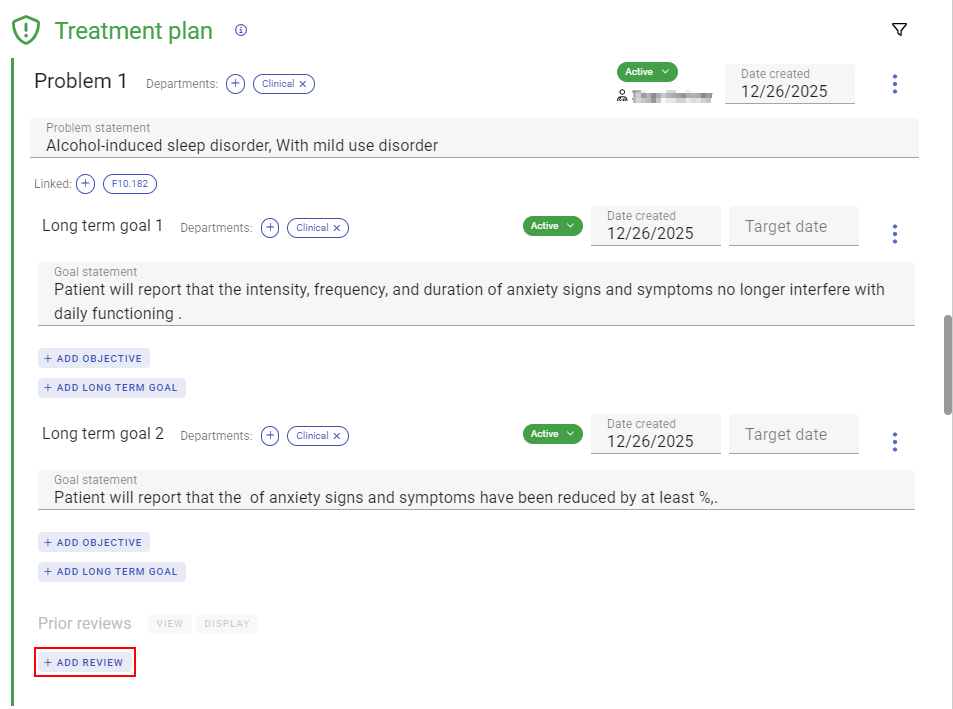
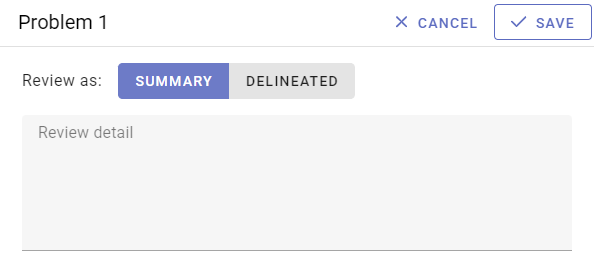
Summary Review: A standard text box for a general overview.
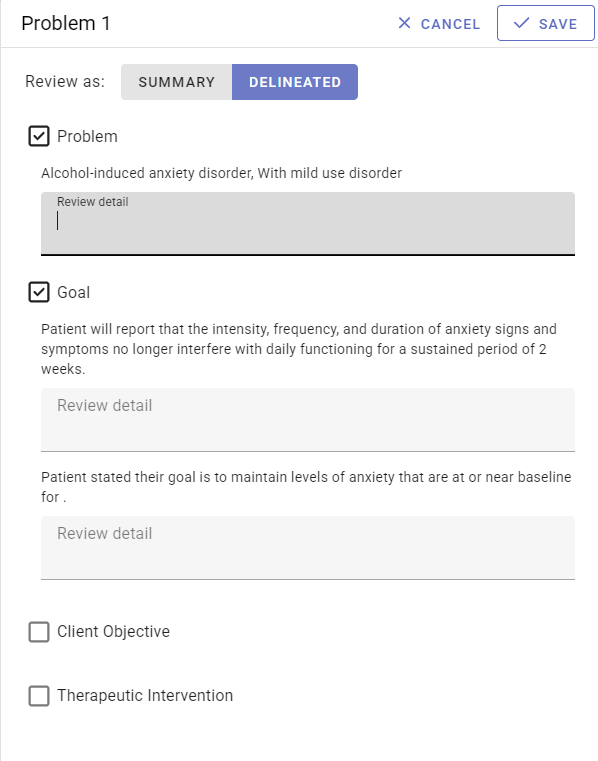
Delineated Review: Allows for specific, granular updates for each problem, goal, objective, and intervention.
Progress Notes
Follow these steps to accurately document your session and ensure all clinical requirements are met.
Data
Select Add content to session
Filter by Department and/or Content
Select the Problem, Goal, Objective/s that you would like to review
Select Add selected
View or Display prior reviews if desiered
Select Review to add a review of the selections
Select Add content to session if more Problems, Goals or Objectives need to be reviewed.
Assessment
Select the checkbox to record “topics brought into light during the session”
Use the text box to note Strengths, challenges & symptoms
Complete the mental status exam
Use the dropdown to select the Assessment of current risk
Plan
Select a Treatment plan status
Use the text box to record next steps, any follow up or coordination, and next scheduled session of this type.
If you aren't finished, close the document and complete it later.
When the progress note is complete, if necessary, Add signers
Sign & Complete the document
Group Therapy Notes
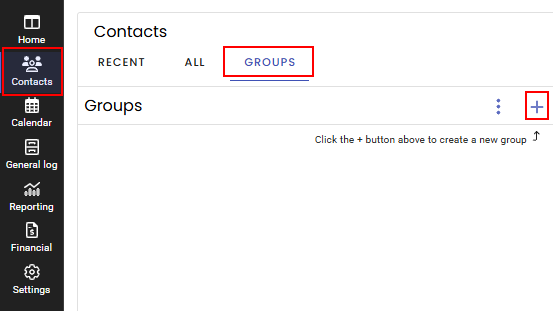
The System Administrator will set up Groups in the Contacts tab. Click the Groups tab and then the Plus icon.
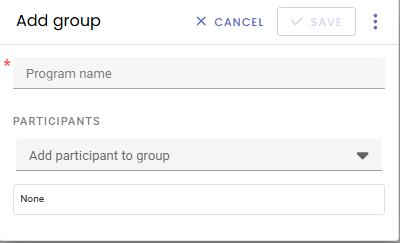
Create the Group name and add any Participants who belong to this group. Click Save.
Starting the Note: There are two options to launch Group Therapy notes.
Launching the note directly from the Contacts tab by clicking Start Session.
Launching the note from a scheduled group appointment in the calendar.
Note Structure:
General Session Details: The screen is for general session information. Do not include PHI (personal health information).
Patient-Specific Sections: Select a patient's name at the top of the screen to enter their specific encounter details, MSE, and progress.
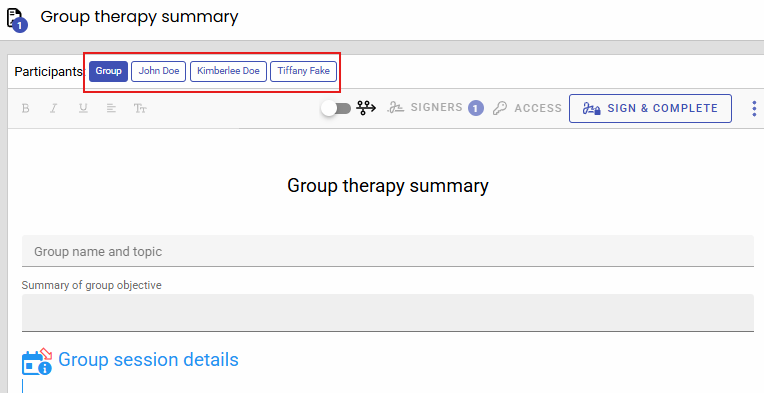
Within each individual patient’s note, follow the next steps accordingly:
Data- Addressed in session
Select Add content to session
Filter by Department and/or Content
Select the Problem, Goal, Objective/s that you would like to review
Click Add selected
View or Display prior reviews if desiered
Select Add review to add a review of the selections
If you would like to add more content to this session, click Edit content in session to add more Problems, Goals, or Objectives that need to be reviewed.
Assessment
Complete the mental status exam
Use the dropdown to select the Assessment of current risk
Plan
Indicate with checking the box if you wish to “continue as indicated in treatment plan”.
Complete plan narrative in text box
If you aren't finished, close the document and complete it later.
When it is complete, if necessary Add signers
Sign & Complete the document