The patient portal is a secure, digital channel used to send necessary documentation—such as applications and consent forms—directly to a patient for electronic signing.
Permissions Required
- Create forms/sessions
Sending Forms/Packets to the Patient Portal
A current, accessible email address is required for the patient to receive the notification and securely access the documents awaiting signature in the portal.
- Navigate to the Activity tab within the patient chart.
- Locate the To Do column and select Get Started.
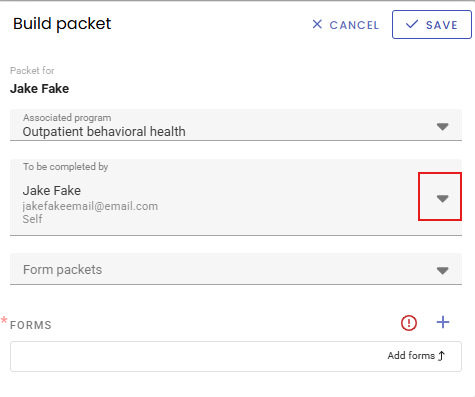
- Choose Create Packet for (patient name).
- Select the specific packet and/or other forms that need to be sent to the portal.
- Click Done and then click Save.
- If sending an admissions packet that the patient will fill out, leave the application questions blank and do NOT click COMPLETE. Click Send Packet at the top right corner of the screen.

Once the user sends the forms, the patient receives an email notification instructing them to log into the portal where they can then sign the documents.
Note: Currently, forms themselves do not reside within the patient portal. The provider initiates the sending process from the patient chart, and the portal serves as the delivery and signing mechanism.
Collecting Signatures via the Portal
Providers can send completed, signed forms to the patient portal for signature.
- Add Signers: Designate the patient or contact as a signer during or after form completion.
- Send to Portal: Select the Globe icon at the top of the form and choose the appropriate patient or contact.
Enable Portal Access for a Patient’s Related Contacts
- Navigate to the Related Contacts card within the patient chart. Once a related contact has been added using the Plus icon, you will be able to define the related contact and patient relationship further.
- Locate the new "Portal" checkbox next to the contact’s name.
- Check this box to grant that specific contact access to view documents.

Note: The portal must also be enabled in your system Settings for this to take effect.
Sending Forms/Packets to a Related Contact
Repeat the same instructions as stated above to send forms or packets to the patient. Before sending the specified packet, use the dropdown arrow to view and select the name of the related contact you would like to send it to.