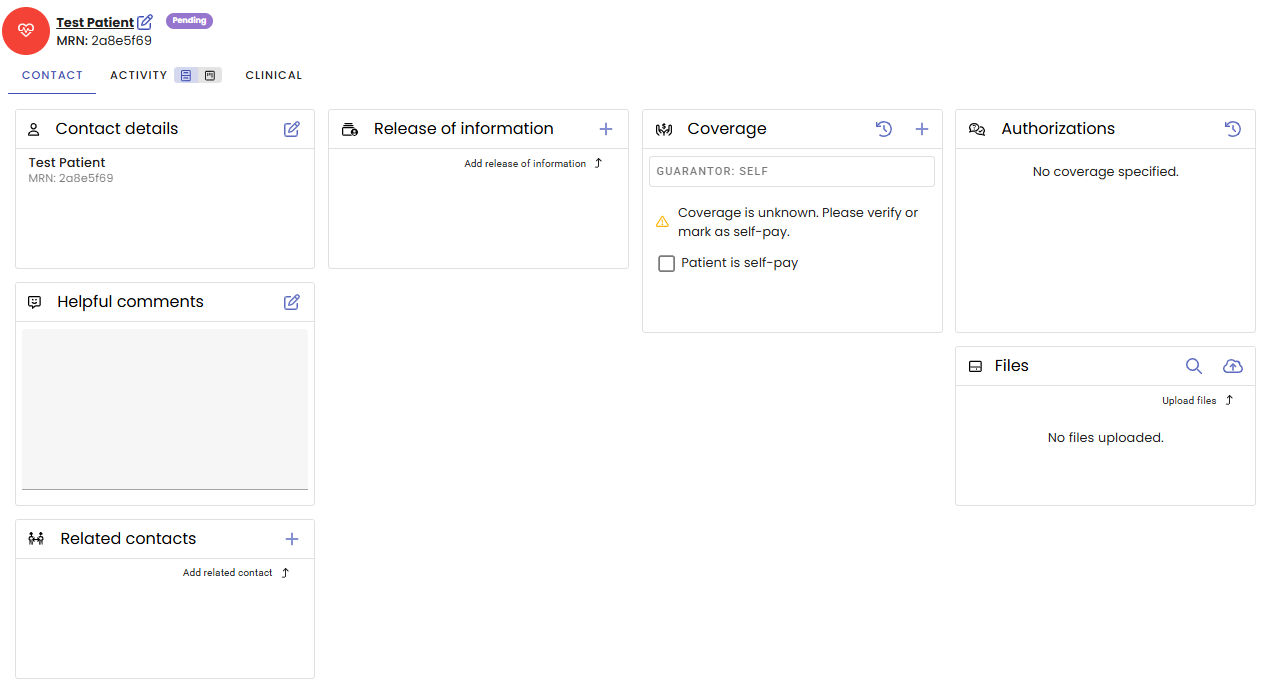
This guide walks you through the quick process of creating a new patient chart within BestNotes Fresh.
Permissions Required
Add User permission required
Adding a New Patient Chart
Initiate the New Patient Search
To begin the process of adding a patient, first use the main search functionality to ensure the patient doesn't already exist in the system.
- Find the Search/add contacts box located prominently at the top left of the screen.
- Begin typing the patient's full name (or a partial name) into the search bar.
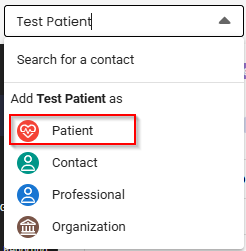
- As you type, the system will display matching names in a drop-down menu. Confirm that the patient is not already listed.
- If the patient is new, select Add Patient.
Enter Essential Patient Details
Once the Add patient screen opens, input the necessary initial information.
- Demographics: Enter the patient's full legal name, date of birth, and other identifying demographic details.
- Initial Episode of Care: Specify the patient's episode and status, current location, program, and care team.
- Other Information: Fill in any other required patient-specific information fields as prompted by the form.
Save the New Patient Chart
Once the required fields are completed the chart is ready to be finalized and created.
- Review Data: Double-check that all essential fields (especially name, location, and program) are accurate.
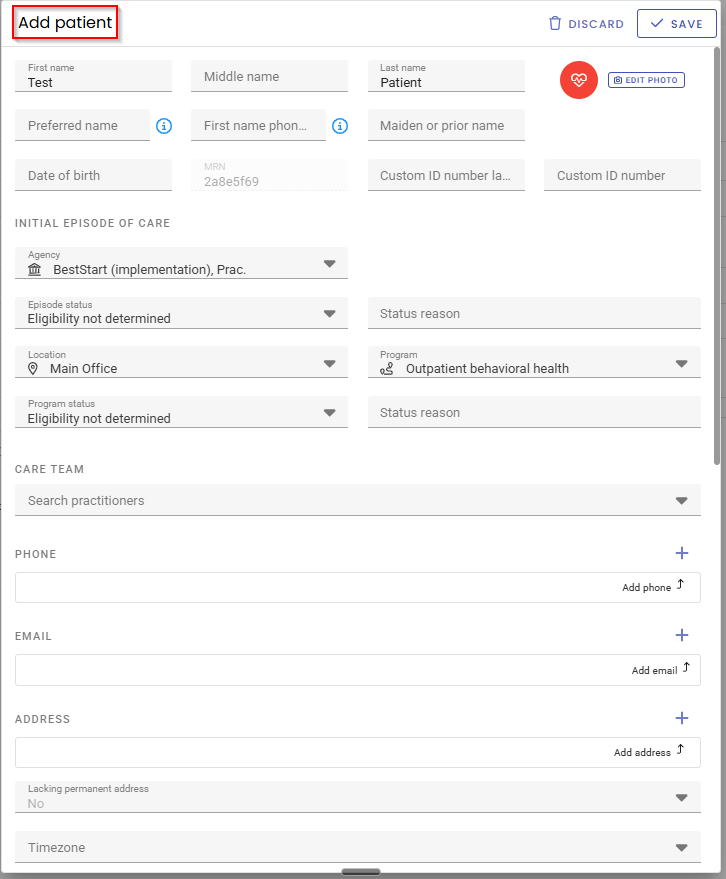
- Save the Chart: Click the Save button located in the top right corner of the screen.
Clicking Save will successfully create the patient's chart, and you will be automatically redirected to their new record for further documentation.