The calendar provides an organized, time-oriented view for managing appointments and schedules.
Permissions Required
No specific BestNotes permissions are required.
Managing the Calendar and Appointments
Accessing and Navigating the Calendar
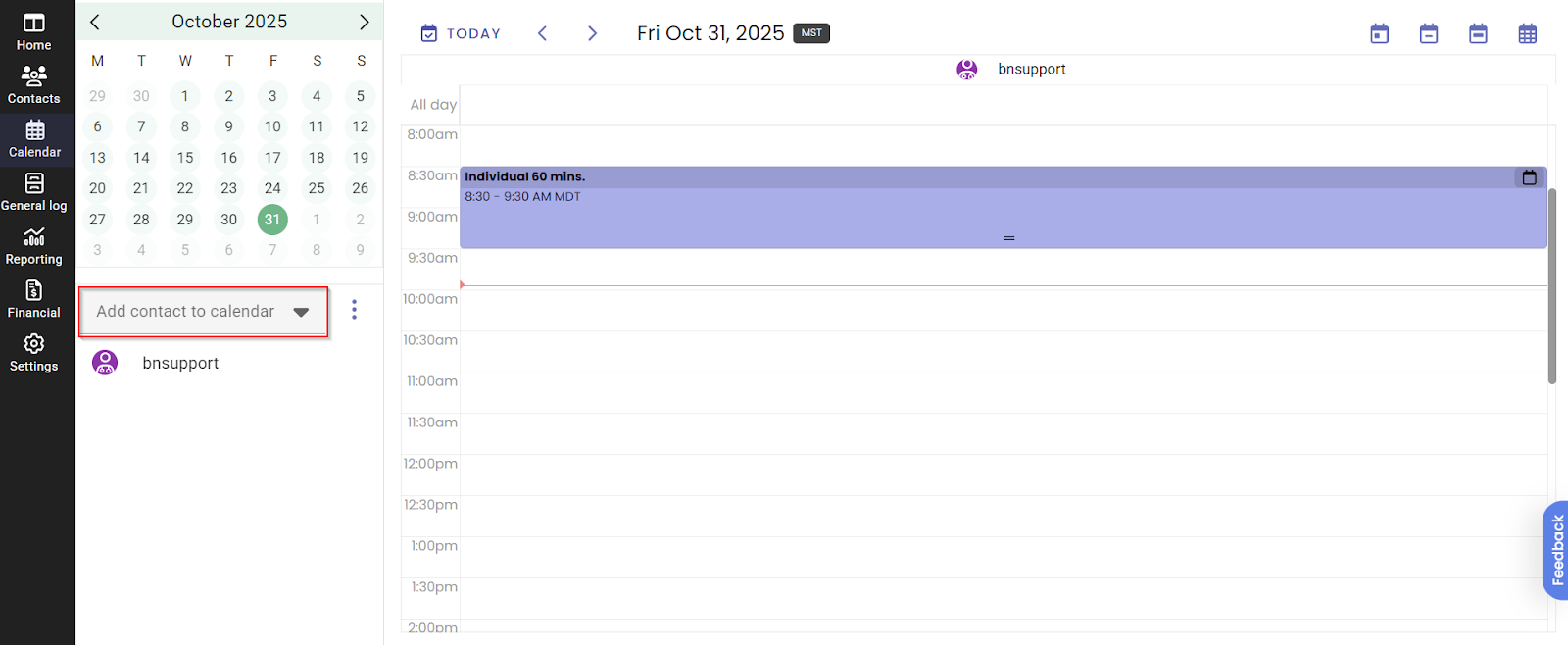
- Access the calendar-oriented view by selecting the Calendar icon from the main menu on the left side of the screen.
- To change the date displayed, utilize the Monthly view or the arrow tools provided.
- The calendar display can be switched between Day, Week, or Month views using the corresponding icons located in the top right corner of the calendar screen.
- It is possible to view and schedule other users' calendars and/or rooms by adding them via the drop-down field.
Scheduling an Appointment
- Click any time slot on the calendar. This action instantly opens the Add appointment screen.
- In the Add appointment screen, complete the necessary details:
- Verify the Date & Time.
- Select an Appointment type.
- Add Participants.
- Verify Planned forms and procedures.
- Choose the Location.
- Once selections are satisfactory, click Save to add the appointment to the calendar.
Starting and Checking Into the Appointment
To initiate a scheduled appointment:
- Select the appointment on the calendar.
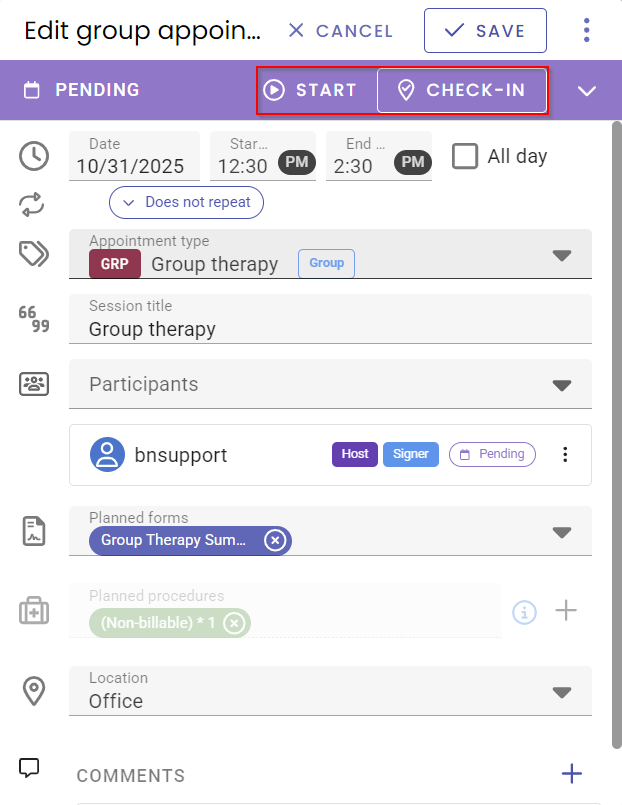
- Utilize the Start and Check-Inbuttons located at the top of the Edit appointment screen.
- Upon starting the appointment, any planned forms associated with the appointment will automatically open.