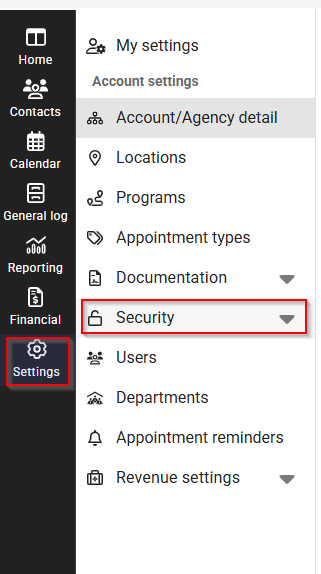
Once OutcomeTools has been enabled for your account, navigate to Settings, then Security.
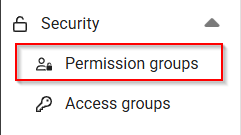
Select Permission Groups
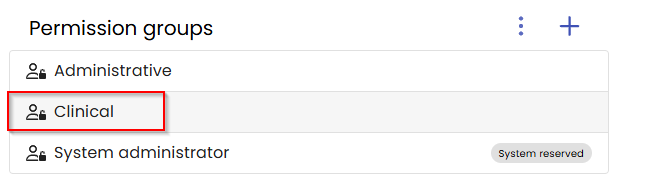
Select a permission group whose users you would like to be able to view the OutcomeTools card in a patient’s chart. You can add this permission to as many permission groups as you need to.
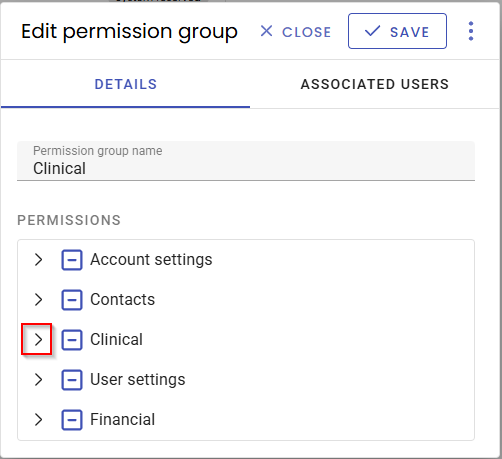
In the selected permission group, go to the Clinical category and click on the arrow.
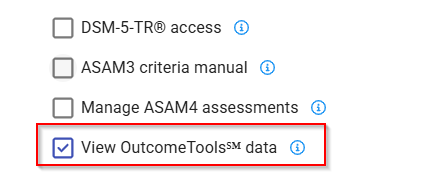
Scroll down to the bottom of the list of clinical permissions and select the box next to View OutcomeTools data.
Note: This only gives the users the ability to view the OutcomeTools card and see a list of surveys taken along with their scores.
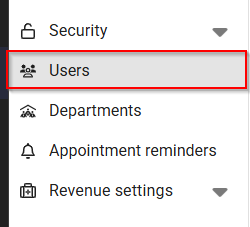
In order to allow a user to interact with the OutcomeTools card in the patient chart and administer surveys, go to Users within Settings.
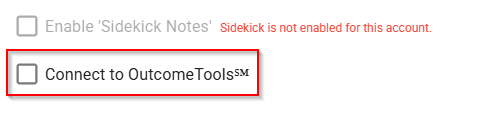
Select the user who needs to administer OutcomeTools surveys and go to their Management tab. Scroll down and check the box next to Connect to OutcomeTools.

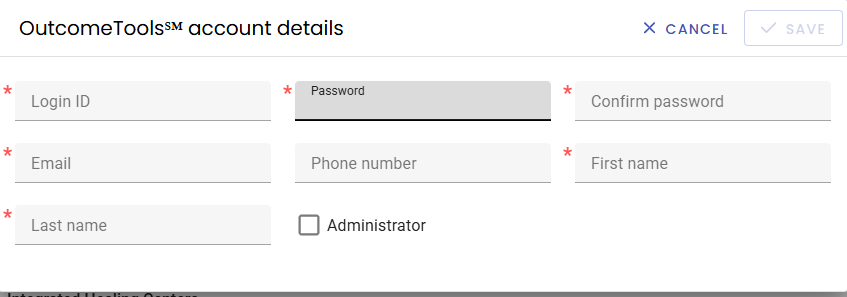
A window will open which will allow you to add the user's information. Please use their email address for the Login ID and create a password for them. If they are present, it would be ideal to have them enter their own password. Please select the Administrator box or they will not be able to administer surveys to patients.
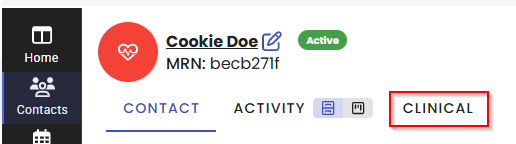
Within a patient chart, navigate to the Clinical tab.
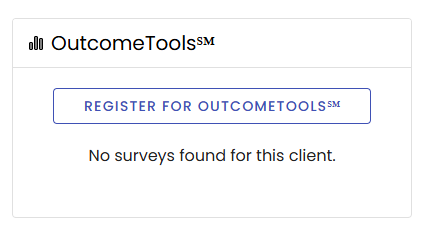
At the bottom of the page you will see the OutcomeTools card. If the user was connected to OutcomeTools they will be able to add the client to OutcomeTools and administer surveys here.
Note: This card says Register for OutcomeTools because this user is not yet connected.