This article guides you through the features and functionalities of your BestNotes Workboard, a personalized dashboard for managing your daily schedule, tasks, and documentation workflow.
Permissions Required
- Unlock Form permission
Managing Your Workboard
To access your Workboard at any time, select the Home icon in the navigation menu on the left side of the screen.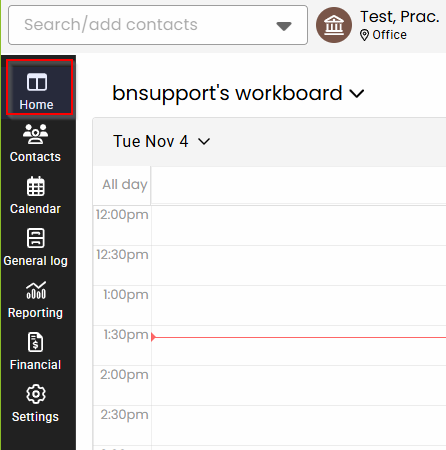
Navigating Workboard Columns
The first column is dedicated to your personal calendar and schedule. Use the List icon in the top-right corner of this column to switch between the “Agenda” view (a chronological list) and the “Calendar” view (timeslots for a specified date).
Instantly create a new appointment by clicking on any timeslot directly within the calendar.
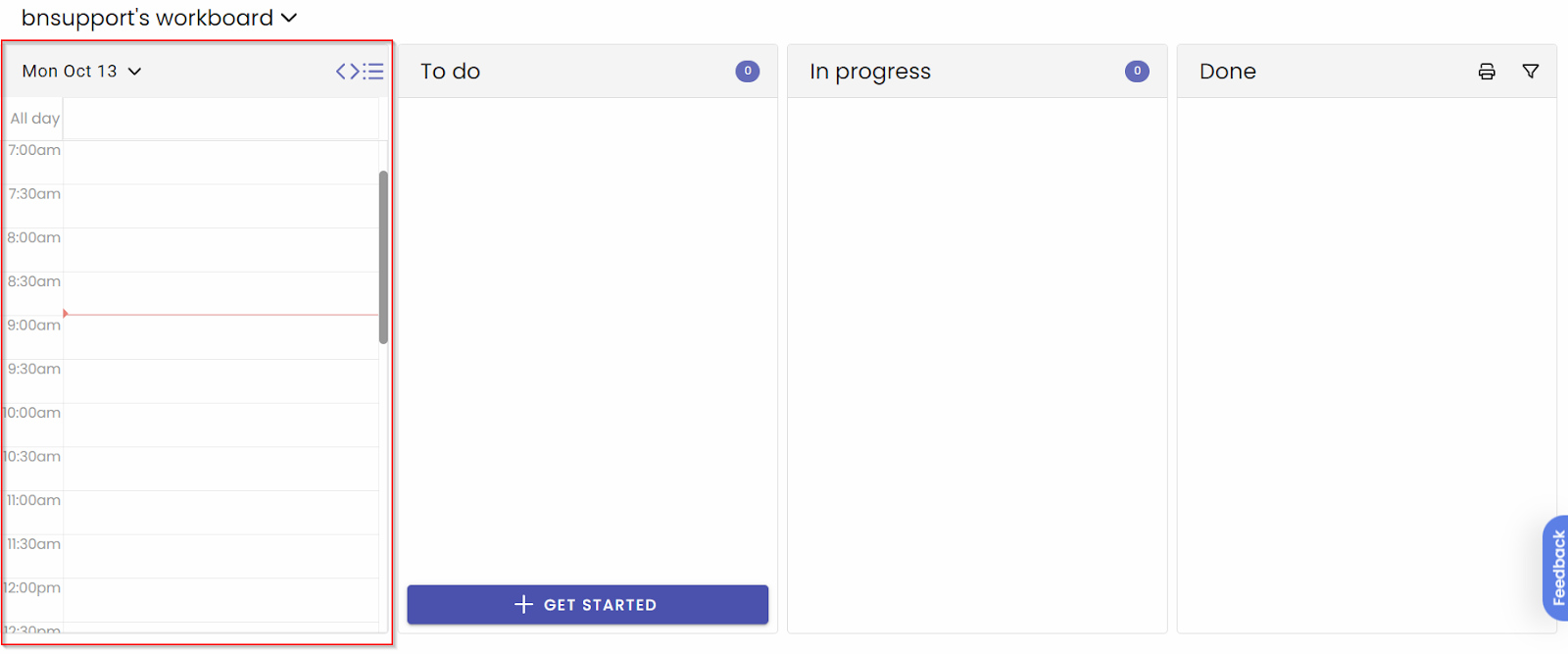
The Workboard is designed in a workflow style to visualize work, track progress, and ensure tasks move smoothly through each stage until completion.
To Do Column
The To Do column on your Workboard is your primary list for managing all immediate and upcoming tasks. This column allows you to keep track of responsibilities and quickly assign work to yourself and others.
Creating a New Task
- Click the Get Started button to quickly create and assign a new task.
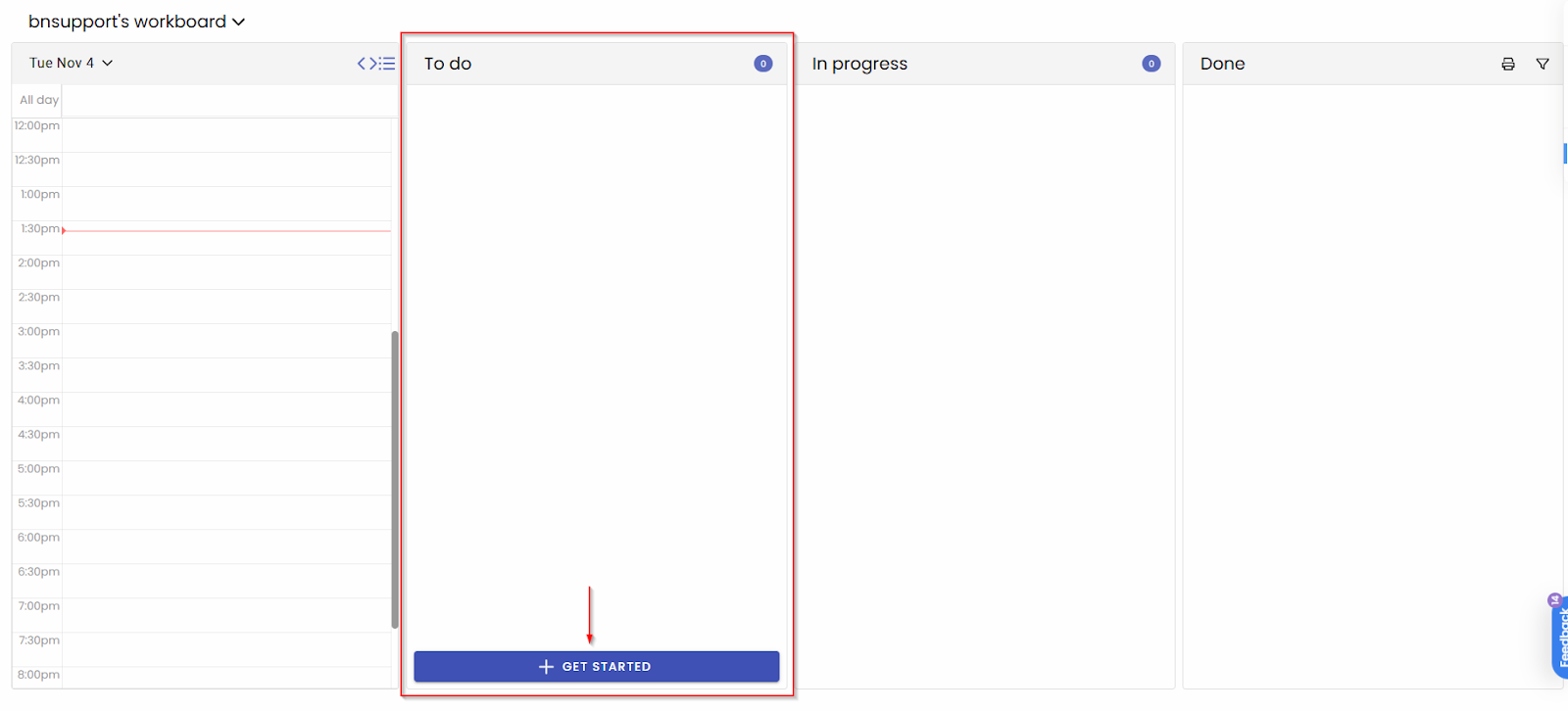
- Enter Details: A task creation window will open. Enter a clear Task Name and any necessary description or due date.
- Click Save at the top of the window.
- Once saved, the new task will immediately appear in the assignee's To Do column.
In Progress Column
The In Progress column serves as a holding area for documents and notes that are not yet "locked" or complete.
Items commonly found here include:
- Unfinished notes: Documentation that has been started but still needs additional content or review.
- Awaiting signature: Documents that require electronic signature before processing.
- Pending review: Items that need to be read and approved before they move forward in the workflow.
When an item is fully completed, signed, and locked, it will automatically move from the In Progress column to the Done column.
Done Column
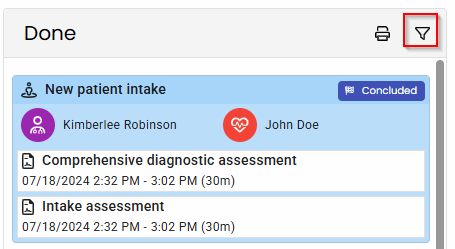
The Done column provides a secure and organized record of all tasks and documentation that have been successfully completed, reviewed, signed, and finalized.
- Items move here automatically from the In Progress column once the final step is taken.
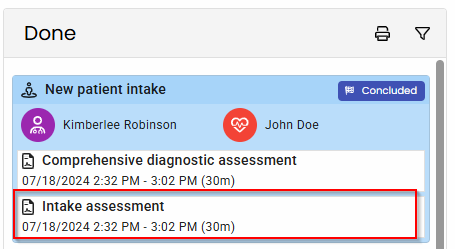
- Although items in the Done column are locked, you can still view them for reference. You can open a read-only view of the finalized document or task record by clicking on the title of the document.
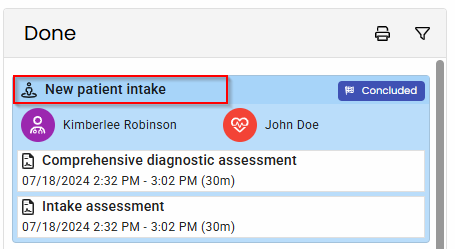
- If you have the Unlock Form permission, you can click on the session title at the top of the card to open all documentation from that session.
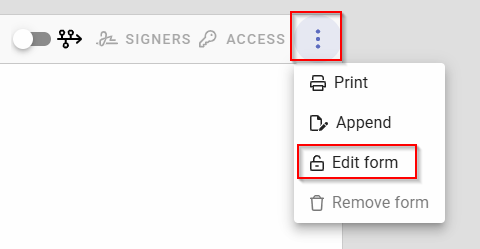
- You have the ability to edit the document by clicking on the three dots stacked vertically at the top right of the screen and selecting Edit Form.
Note: The Done column typically displays the most recent completed items at the top. For older records or a full comprehensive history, use the dedicated filter function located at the top right of the Done column.